
Every feature, screen by screen
Follow the chapters in order to discover Scantivo, or go straight to the procedure you need.
Scanning and creating PDFs
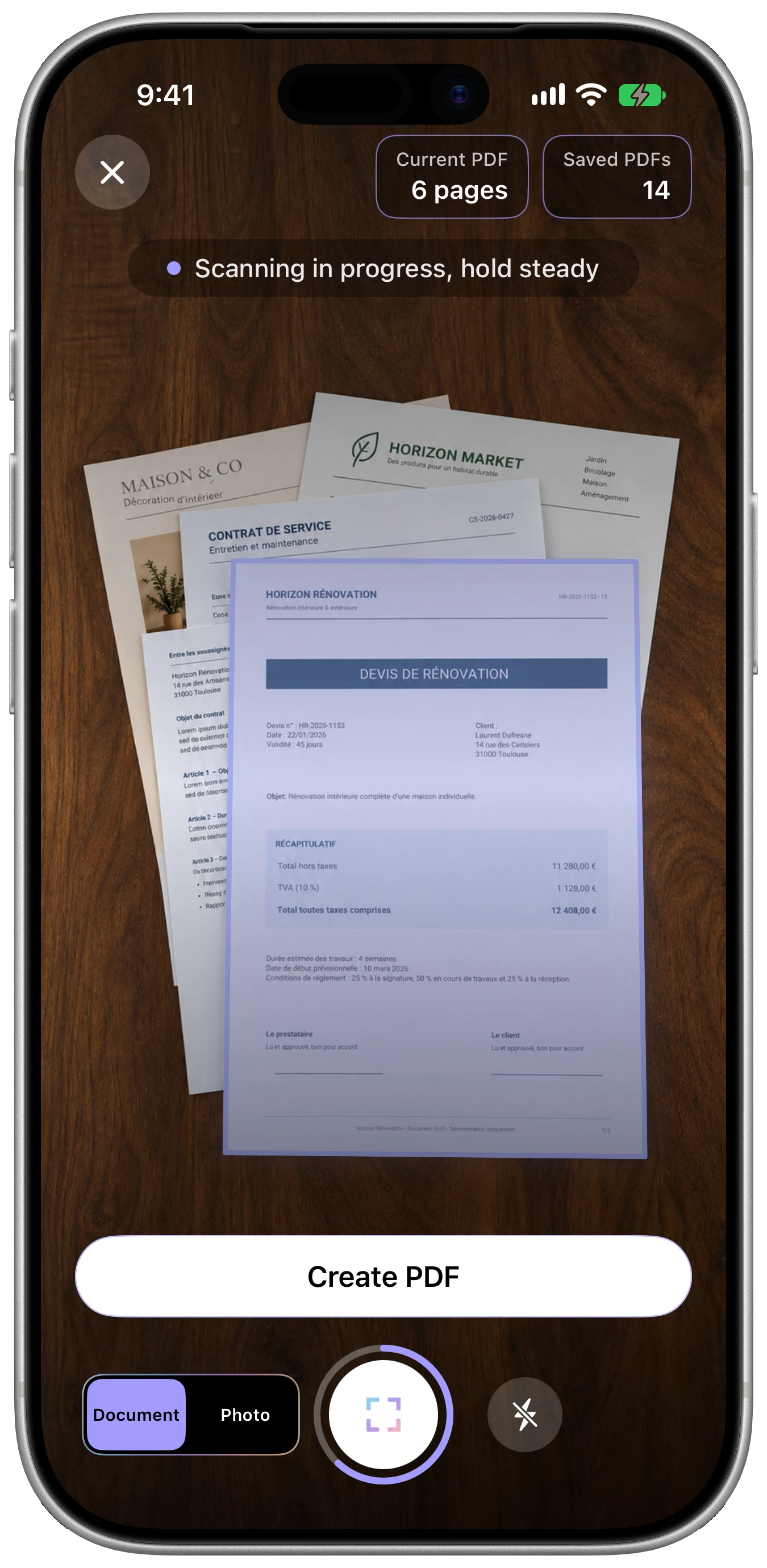
How do I create several PDFs without restarting the scanner?
Can I create a multi-page PDF?
The camera won’t open. What should I do?
Why doesn’t automatic capture trigger?
How can I get a sharper, more readable scan?
What does the first launch include?
Where can I find the tutorials again?
Document and Photo modes
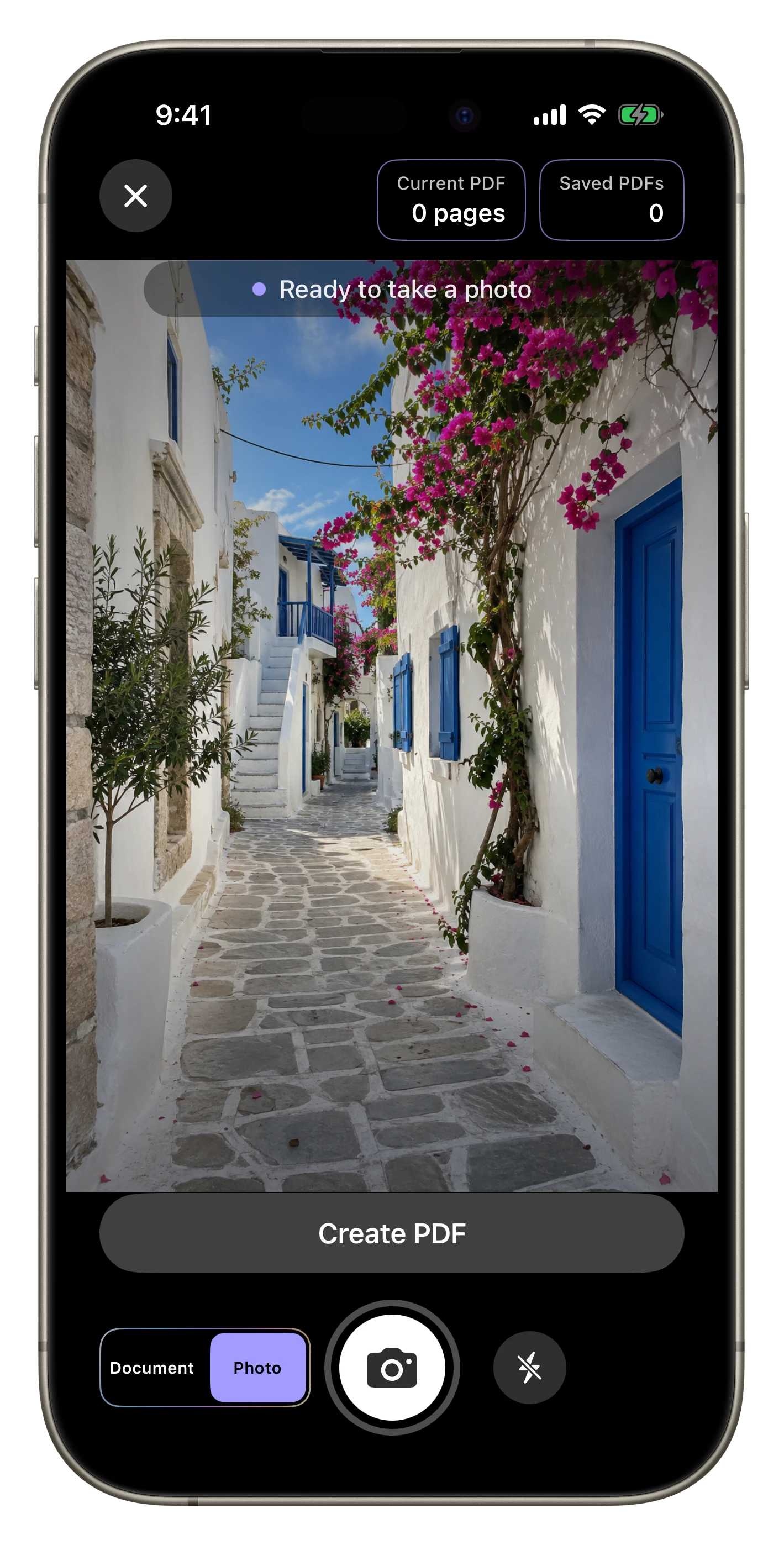
What is the difference between Document and Photo modes?
Can I use Photo mode in “Add Pages”?
Organizing, searching, and editing
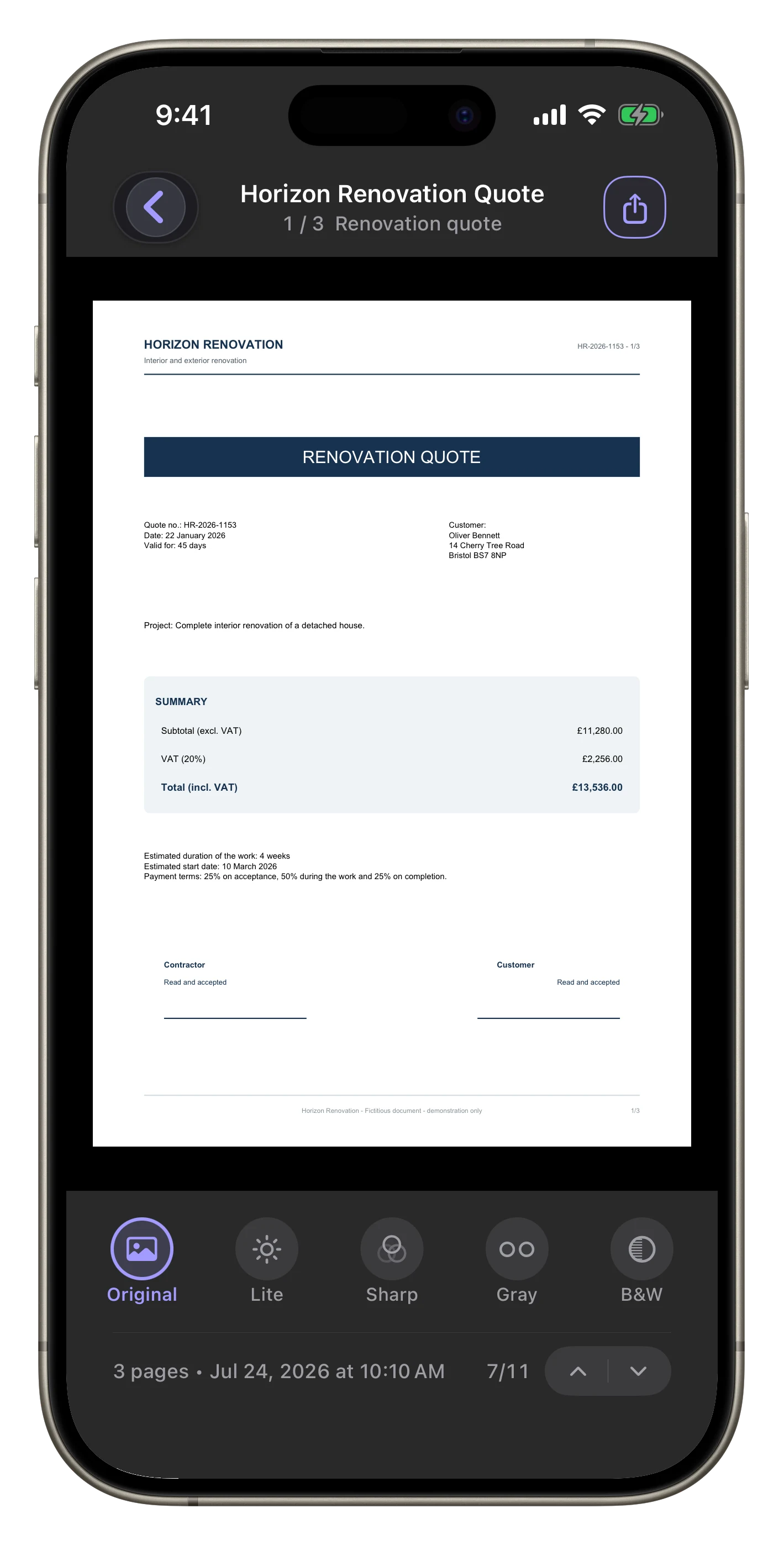
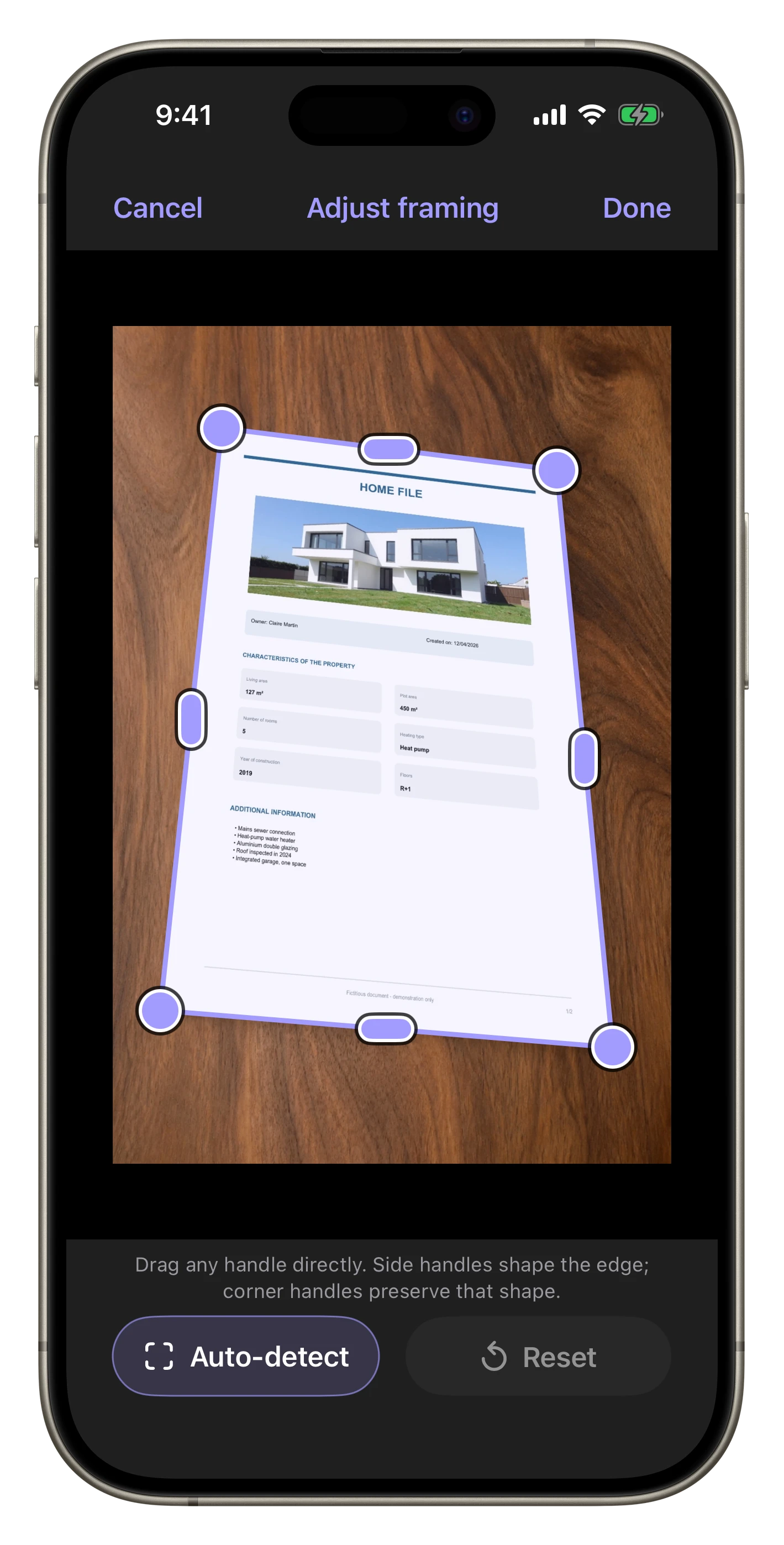
How do I correct a document’s corners and edges?
This feature is available from the preview of a page created in Document mode.
- Open the PDF from the library and display the page you want to correct.
- In the bar below the preview, tap “Adjust framing”.
- Move a corner handle to correct only the corresponding corner.
- Move a handle in the middle of an edge to shape that edge locally, especially when it is curved or uneven.
- Use “Automatic detection” to ask Scantivo to find the document edges again.
- Use “Reset” to return to the framing that was present before your changes.
- Tap “Done” to apply the correction to the page.
When the original image is available, Scantivo uses it as the source for the correction. For some older PDFs whose original image was not retained, the framing can be tightened, but previously cropped areas cannot be recovered.
How do I find a PDF?
Can I search for an amount in an invoice or receipt?
How do I rename a document?
What can I edit in a PDF with Scantivo Unlimited?
Can I add new pages to an existing PDF?
How do I share or extract only certain pages?
What is the destination folder for?
What exactly does Delete Everywhere remove?
Backup and privacy
Are my documents sent over the Internet?
How do I back up and restore my library?
What if I forget my backup password?
Can I recover my documents after losing or replacing my device?
Scantivo Pulse

How does Scantivo Pulse work?
What data is sent for a Scantivo Pulse alert?
Can Scantivo or its developer open my documents?
Which Scantivo Pulse paths are guaranteed?
Can the same folder be followed across Apple and Android devices?
Library sync with iCloud or Google Drive
Do I need a Scantivo account to synchronize my library?
Can I synchronize an iPhone with an iPad?
Can I synchronize an Android phone with an Android tablet?
Can I synchronize an iPhone with an Android device?
What happens if I delete a PDF on one device?
What is the difference between library sync and full backup?
Is library sync included in the free version?
Free version, trial, and purchase
What is included in the free version?
How does the 14-day trial work?
Does the trial restart after an update, reinstall, or change of phone?
Is Scantivo Unlimited a subscription?
How do I restore my purchase on a new device?
Is support for Scantivo tax-deductible?
Troubleshooting
My Unlimited purchase isn’t recognized. What should I do?
The destination-folder copy is no longer updating.
Scantivo can’t save a PDF.
Search can’t find a word that is in a document.
How do I report a bug effectively?
Scantivo Smart Upload
Two ways to set the size limit
On iPhone and iPad, only automatic size-limit detection is exclusive to Safari. In another browser or app, enter the limit in MB in Scantivo before choosing your PDF.
In Safari on iPhone or iPad
Scantivo Smart Upload can detect the website’s limit when it is accessible and the extension has permission.
- Enable the Scantivo Smart Upload extension and allow it to access the website.
- On the form, the extension looks for the limit of the PDF upload field. If it cannot detect it, use the manual entry method described here.
- Open the file picker, choose the Scantivo location, then select your PDF.
In another browser or app
On iPhone, iPad and Android, enter a numeric value in MB and confirm it. Manual use requires neither Safari access nor Chrome-detection consent. The limit is temporary; on Apple devices it is valid for ten minutes. Check that it is still valid before selecting your PDF. The manual limit is valid for ten minutes; on Android it is associated with the next PDF, its version and corresponding retries. The Chrome selection token has a separate two-minute validity period.
- Find the maximum file size specified by the website or app, in MB.
- Open Scantivo’s Settings, then Scantivo Smart Upload. Enter this value in the size-limit setting for the next PDF and confirm.
- Return to the website or app, tap the button to attach a file, then choose the Scantivo location on iPhone/iPad or Scantivo Smart Upload on Android and select your PDF.
Chrome on Android: optional detection
On Android, size-limit detection in Chrome is optional and requires a compatible version of Scantivo, your separate consent and service activation in Android.
In Scantivo, read the dedicated explanation and, if you wish, give separate consent for Chrome detection. Then enable “Scantivo Smart Upload · Chrome” yourself in Android Accessibility settings. This Android service is not a Chrome extension. Refusing leaves manual Scantivo Smart Upload available; you can withdraw consent directly in Scantivo Smart Upload settings. No previous laboratory test consent is carried over.
With this consent and permission, the service can read web-control labels and a short area of text near a recognised file-upload control locally, in Chrome only. The accessible address is used temporarily to associate the limit with the page. These elements may include personal data, including in private tabs if Chrome exposes them. Android offers no separate private-tab choice: disable detection before using them if you do not want this reading. Detection is not guaranteed on every website.
On Android, enter and confirm the limit in MB in Scantivo before selecting the PDF if needed. A still-valid detected limit is used first, then an applicable manual limit, then the 4 MB fallback. Ambiguous or expired context is rejected, not replaced with a larger limit. The 4 MB fallback applies only when no usable limit is available; it does not arbitrarily replace a detected limit. If detection fails or is not authorised, use this manual workflow. Reduction and file acceptance remain subject to the document’s capabilities and the website’s checks.
Enable Chrome detection: the Android steps
First activation separates the guide, your consent in Scantivo and Android permission. Follow the steps below.
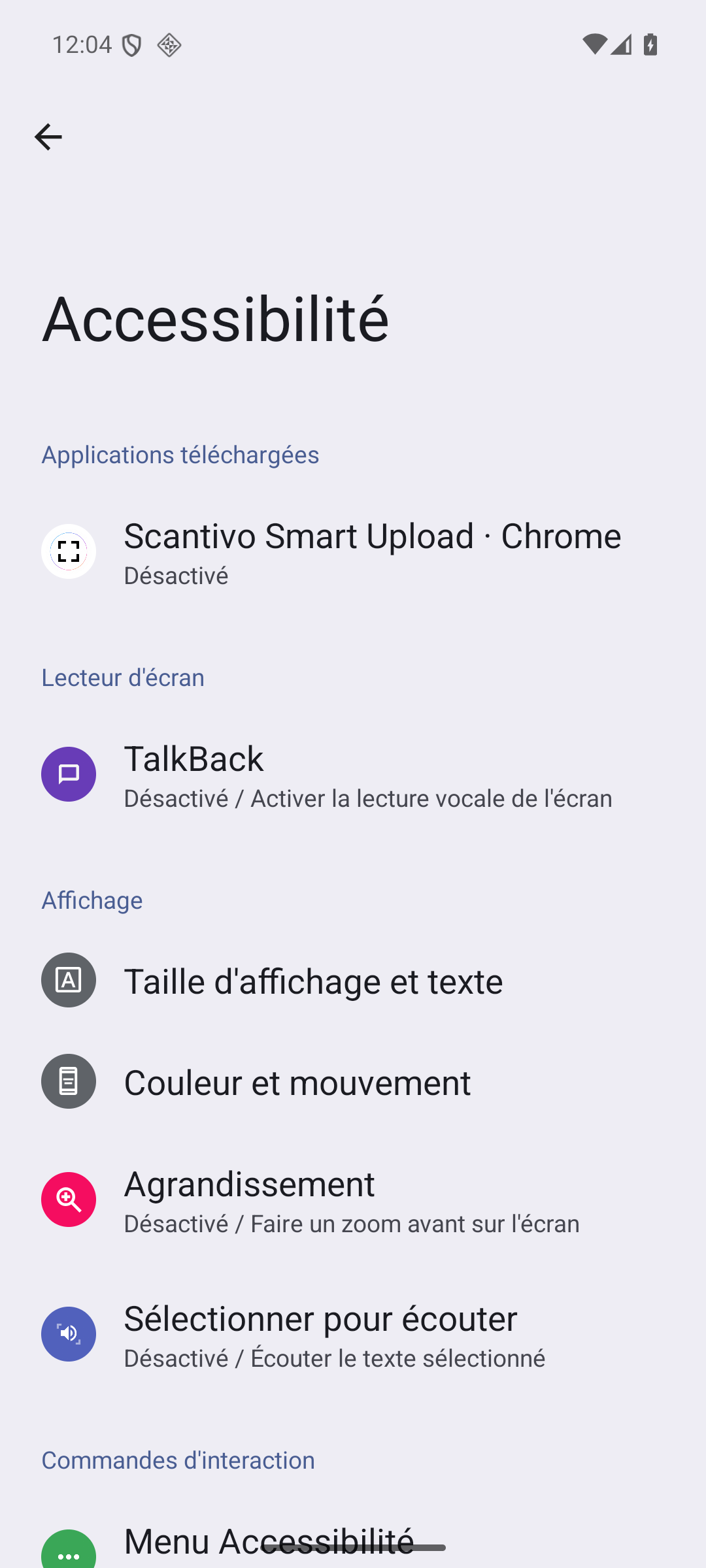
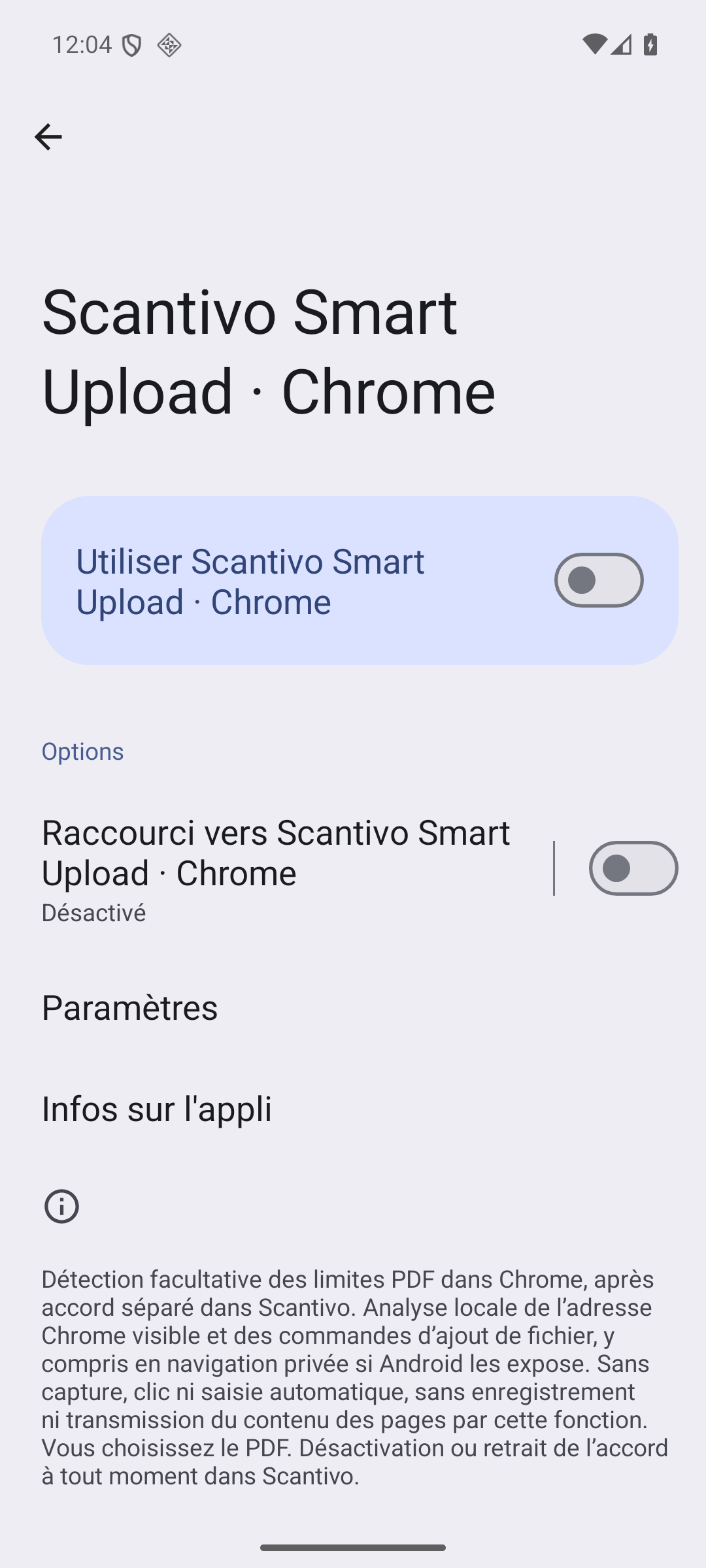
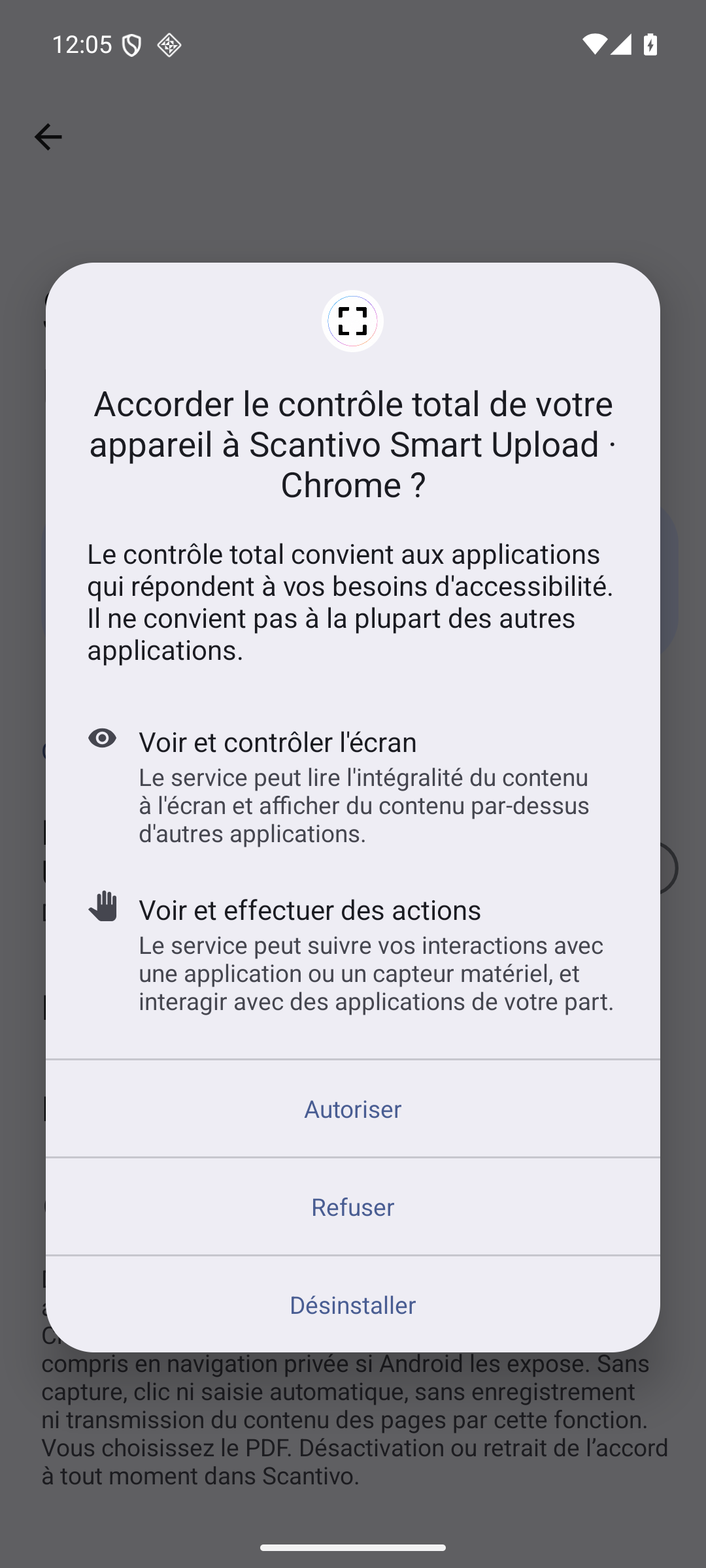
These Android screenshots are in French. Names and appearance may vary by device.
Authentic captures of the Scantivo interface on an Android emulator and Android AOSP settings. They illustrate the process, not actual activation on your phone.
-
Open the guide from Scantivo
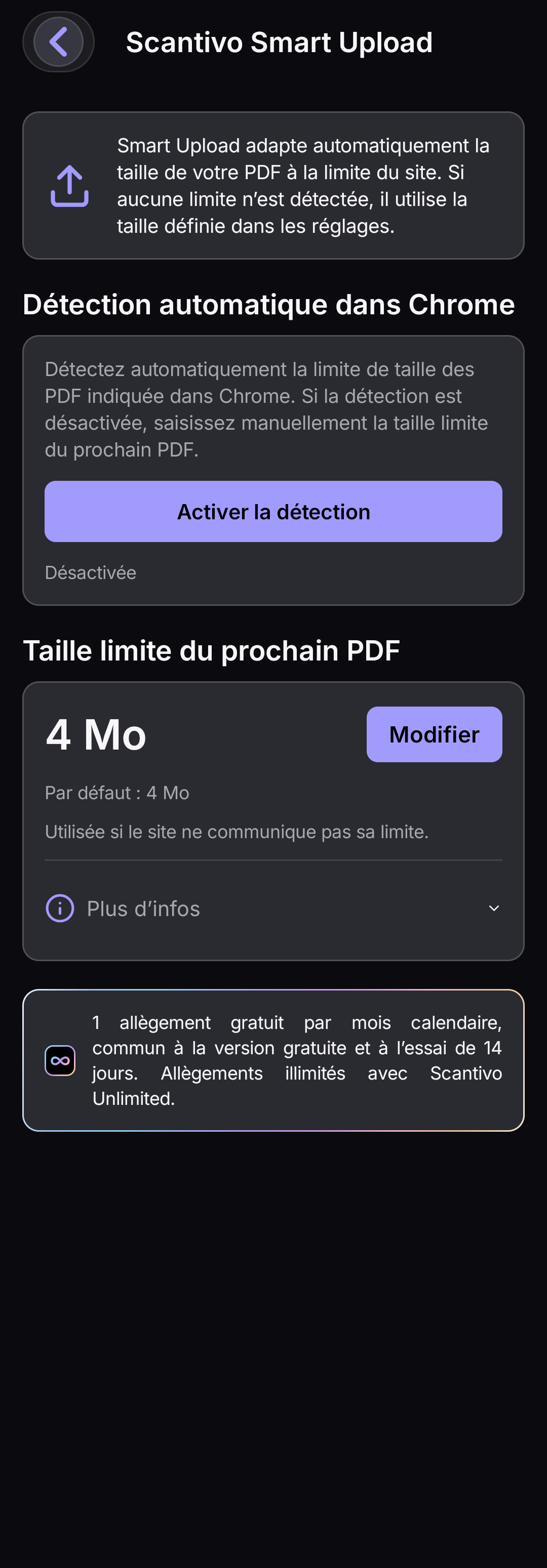
In Settings → Scantivo Smart Upload, tap “Enable detection” on the “Automatic detection in Chrome” card. The illustrated guide opens; no permission is granted at this stage.
-
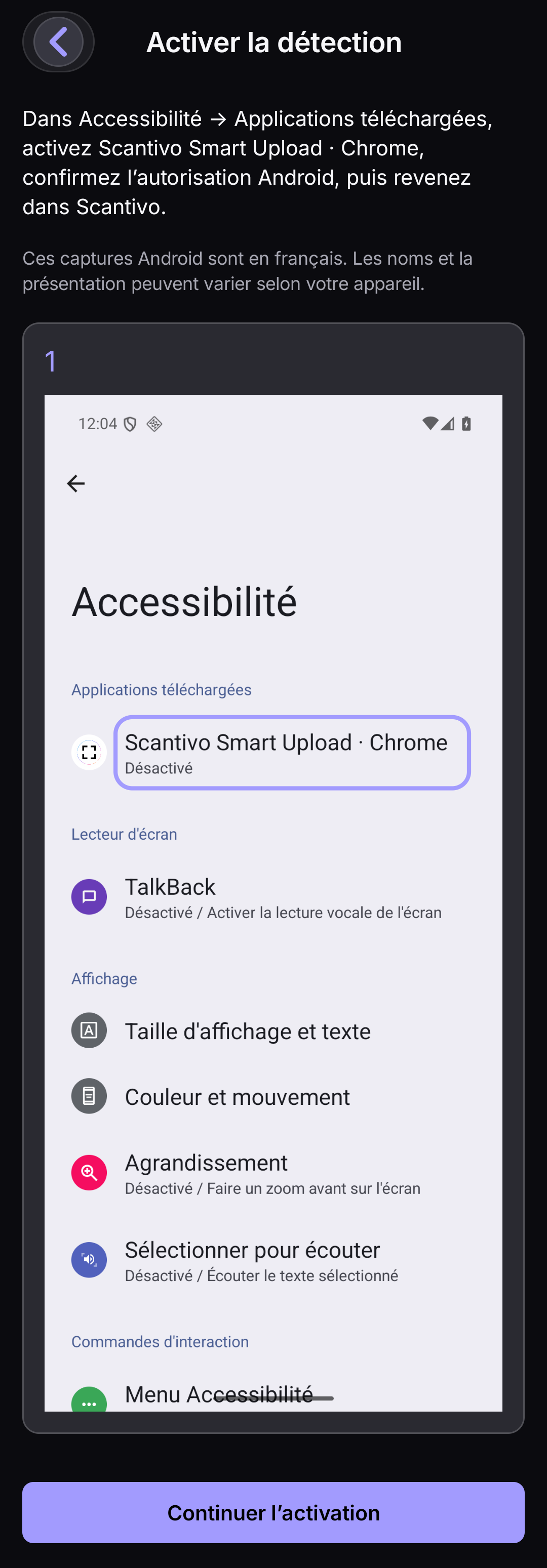
Continue from the illustrated guide
The guide shows the Android settings you will use later. Tap “Continue activation”. When consent is first requested, the next screen is the explanation in Scantivo, not the Accessibility list yet.
-
Give or decline consent in Scantivo
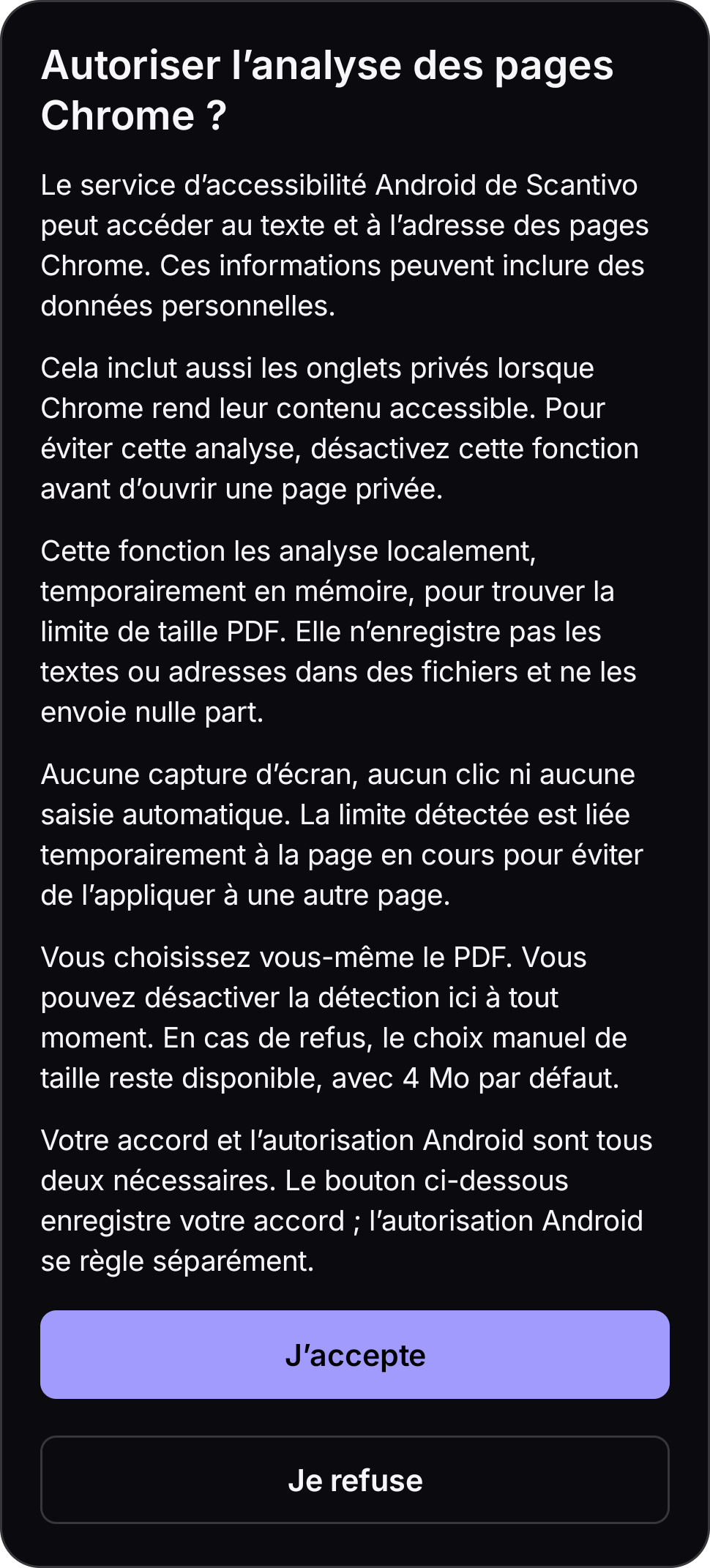
Read all of “Allow Chrome page analysis?”, then choose “I agree” only if you agree, or “No thanks”. After consent is saved, Scantivo opens Android settings if permission is missing. This step is not repeated if the applicable consent is already saved. Declining or a save failure grants nothing.
-
Choose the Scantivo service
In Accessibility → Downloaded apps, open “Scantivo Smart Upload · Chrome”.
-
Turn on the main switch
Turn on the switch to use Scantivo Smart Upload · Chrome. The “Shortcut” switch does not enable detection.
-
Read and choose the permission
Read the entire Android warning about access to screen content and possible actions. Choose “Allow” only if you accept this permission; otherwise choose “Deny”. Then return to Scantivo.
-
Return to Scantivo and check the status
Return to Scantivo Smart Upload settings and check the actual status displayed. Completed activation should show “On: consent saved and Android permission granted.”. Otherwise, check your consent and Android permission, or use manual configuration. An enabled status does not guarantee detection on every site.
Detection remains optional. If you decline, manual configuration remains available. You can disable detection or withdraw your consent in Scantivo Smart Upload settings.
Use a PDF scanned with Scantivo from “My Library”. On iPhone and iPad, first enable the Scantivo location in Files.
iPhone · iPad
Enable Scantivo in Files
On iPhone and iPad, access to your PDFs and file-size limit detection are two separate settings.
The overview and first step show Files in English. The Edit menu and activation screenshots are still in French, with explanations in English. Labels and layout may vary with your system version.
Find the controls in Files
This overview shows where to go: open the Browse tab at the bottom of the screen, then the … menu at the top right. The detailed steps follow below.
- At the bottom: the Browse tab
- At the top right: the … menu
-
Open Files · Tap …
In the Files app, open Browse and display the list of locations. Open the menu at the top right of the list.
-
Choose Edit
The location switches appear.
-
Enable Scantivo
Turn on the switch next to Scantivo.
Confirm
Tap the checkmark or Done, depending on your iOS or iPadOS version.
Then return to the form: in the file picker, open the Scantivo location and choose your PDF.
In a Test build, the location may be named Scantivo Test. It is not necessarily named Scantivo Smart Upload. Labels may vary with the system language and version.
You enable this yourself in Files. Scantivo can open the picker, but cannot turn on the switch for you or guarantee that the Edit menu opens directly.
On Android, use the file picker: these Safari and Files settings do not apply.
If Scantivo is missing or displays an error, do not delete your PDFs to try to enable it. Contact support
How do I access Scantivo Smart Upload?
Scantivo Smart Upload offers PDFs scanned with Scantivo from My Library. On iPhone and iPad, make the Scantivo location available in Files; permission for the Safari extension is separate and is needed only for the Safari workflow. On Android, use the Scantivo Smart Upload location in the file picker. Free and Trial share 1 free size reduction per calendar month; Scantivo Unlimited removes this quota. No automatic purchase is triggered.
How do I use it on iPhone and iPad?
Configure Scantivo Smart Upload in Scantivo Settings, then enable its location in Files. To detect a Safari website’s limit, enable the extension separately and grant it access to that website. It uses a reliably detected limit or lets you enter one for the field. For other workflows, you can also enter a Limit for the next PDF in Scantivo; this temporary context is valid for ten minutes. In the file picker, choose Scantivo, then your PDF. If no usable limit is available, the fallback target is 4 MB. The original is provided unchanged only if it fits the limit; otherwise, a suitable copy is required. Preparation may happen in advance on the device, without using the quota before a reduced copy is successfully delivered.
How do I use it on Android?
On Android, size-limit detection in Chrome is optional and requires a compatible version of Scantivo, your separate consent and service activation in Android. In Scantivo, read the dedicated explanation and, if you wish, give separate consent for Chrome detection. Then enable “Scantivo Smart Upload · Chrome” yourself in Android Accessibility settings. This Android service is not a Chrome extension. Refusing leaves manual Scantivo Smart Upload available; you can withdraw consent directly in Scantivo Smart Upload settings. No previous laboratory test consent is carried over. On Android, enter and confirm the limit in MB in Scantivo before selecting the PDF if needed. A still-valid detected limit is used first, then an applicable manual limit, then the 4 MB fallback. Ambiguous or expired context is rejected, not replaced with a larger limit. The 4 MB fallback applies only when no usable limit is available; it does not arbitrarily replace a detected limit. If detection fails or is not authorised, use this manual workflow. Reduction and file acceptance remain subject to the document’s capabilities and the website’s checks.
Why might a file still be rejected?
The website’s limit may be inaccessible or differ from the target used. Some documents cannot be reduced enough: preparation may then fail, without presenting an oversized original as compatible. The website may also impose particular format, content or security requirements. Neither an exact size for every PDF nor acceptance by every website is guaranteed. Check the required limit and the result’s legibility before sending it.
Are the original and its quality preserved?
The original is preserved. A PDF already below the applicable limit is not reduced unnecessarily. If reduction is needed, Scantivo aims to preserve as much quality as possible within the limit, without guaranteeing identical quality or an exact size. The copy may be rebuilt from images of the pages: resolution, selectable text, the OCR layer, forms or digital signatures may not be retained. Keep the original and check the copy’s legibility.
Which PDFs can I use with Scantivo Smart Upload?
Scantivo Smart Upload’s source is My Library: PDFs scanned with Scantivo, with no new folder to choose. The optional destination folder holds additional copies; it does not move the library and is not required to access Scantivo Smart Upload. Preparation may create internal copies on the device.
What data does Scantivo Smart Upload use?
Scantivo Smart Upload is optional. PDFs are prepared on your device to carry out the feature you have requested. No PDF is sent to a CAMPO STELLATO server for reduction. The browser or destination website receives the file when you choose to provide it; their processing is governed by their own policies.
When is my included PDF size reduction counted?
The monthly allowance, shared by the free version and the trial, is used when a genuinely smaller copy is delivered to the file picker, even if the website later rejects it. A failure, cancellation before delivery or a PDF already below the limit does not use the allowance. Receiving the same result again does not count it a second time. The allowance follows the device’s local calendar month; activating the trial does not provide an extra reduction. Scantivo Unlimited removes this allowance limit.
How do I enable Scantivo in Files on iPhone or iPad?
In the Files app, open Browse and display the list of locations. Tap … → Choose Edit → Enable Scantivo → Confirm.
In a Test build, the location may be named Scantivo Test. It is not necessarily named Scantivo Smart Upload. Labels may vary with the system language and version.
Chrome on Android: optional detection
On Android, size-limit detection in Chrome is optional and requires a compatible version of Scantivo, your separate consent and service activation in Android.
In Scantivo, read the dedicated explanation and, if you wish, give separate consent for Chrome detection. Then enable “Scantivo Smart Upload · Chrome” yourself in Android Accessibility settings. This Android service is not a Chrome extension. Refusing leaves manual Scantivo Smart Upload available; you can withdraw consent directly in Scantivo Smart Upload settings. No previous laboratory test consent is carried over.
With this consent and permission, the service can read web-control labels and a short area of text near a recognised file-upload control locally, in Chrome only. The accessible address is used temporarily to associate the limit with the page. These elements may include personal data, including in private tabs if Chrome exposes them. Android offers no separate private-tab choice: disable detection before using them if you do not want this reading. Detection is not guaranteed on every website.
This detection takes no screenshots and performs no automatic taps or typing. This feature does not store or transmit raw page text or URLs. Only consent, its revision and the activation setting are stored persistently; the technical context fingerprint and size limit remain temporarily in memory. A limit reserved for a Chrome selection is valid for at most two minutes and may be invalidated earlier. Expiry prevents further use; it is not a promise of physical memory erasure at an exact millisecond. You always initiate PDF selection and delivery.
Video tutorials
Demonstrations on iPhone. Screens may vary by version and platform. Play a video to watch it full screen; no prior download is required.
Scan and create PDFs
The Vimeo player loads only after you click. Watch on Vimeo ↗
Organise your library
The Vimeo player loads only after you click. Watch on Vimeo ↗
Use Unlimited tools
The Vimeo player loads only after you click. Watch on Vimeo ↗
Scantivo Smart Upload — iPhone · English
The Vimeo player loads only after you click. Watch on Vimeo ↗
Couldn’t find your answer?
Use the FAQ to search for a specific problem. You can also write to us with your device and the steps that cause the issue.